![Epic River-Kinective-white.png]](https://knowledge.epicriver.com/hs-fs/hubfs/Epic%20River-Kinective-white.png?height=40&name=Epic%20River-Kinective-white.png)
If your financial institution is not currently utilizing our Remote Online Notary functionality, please contact us to set up Remote Notary.
Best practice: The notary should set up a time with the signer for both parties to login to the Remote Online Notary Portal.
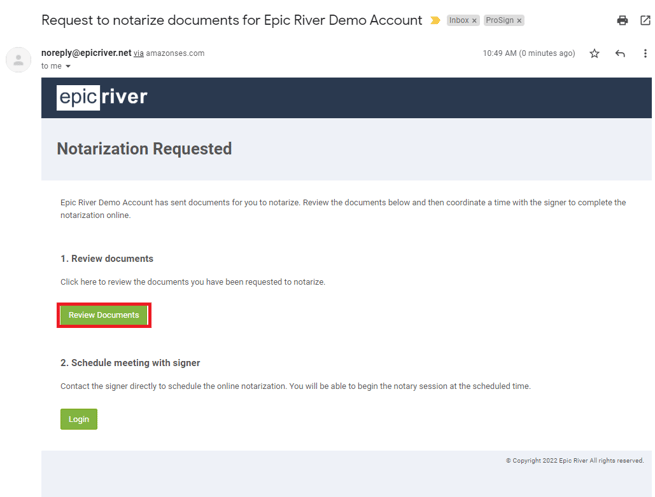
- The notary will receive and email to enter into the notary session with their signer.
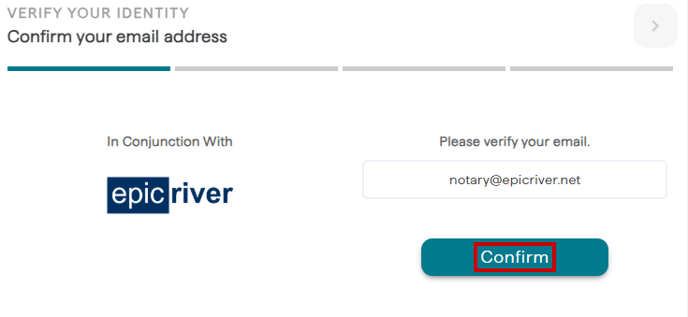
- The Notary will first verify their email address and continue to the session.
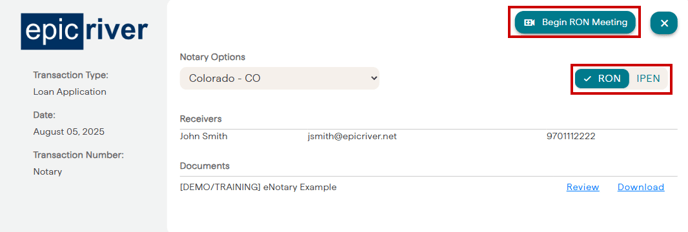
- The Notary will see the transaction information and click "Begin Notary Session" for Remote Online Notarization. To change your notary session to an In Person Electronic Notary (IPEN) session, you can flip the toggle from Remote to In Person and begin an IPEN session without the Audio/Visual checks and verifications. IPEN sessions should be utilized if you are planning to electronically notarize document(s) with the Notary and Signer(s) physically present in the same room.
- The next prompt the Notary will have to choose is whether or not they have sufficient personal knowledge of the signer. Most states allow this option - please refer to your Secretary of State's eNotary rules and regulations.
- If the Notary does not have sufficient personal knowledge, please choose
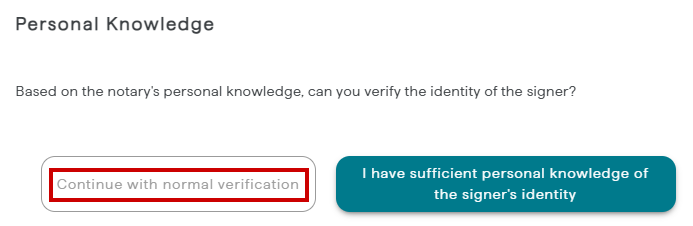
- If the Notary does have sufficient personal knowledge of the signer, please choose
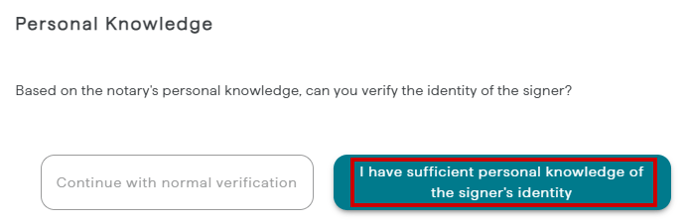
- If the Notary does not have sufficient personal knowledge, please choose
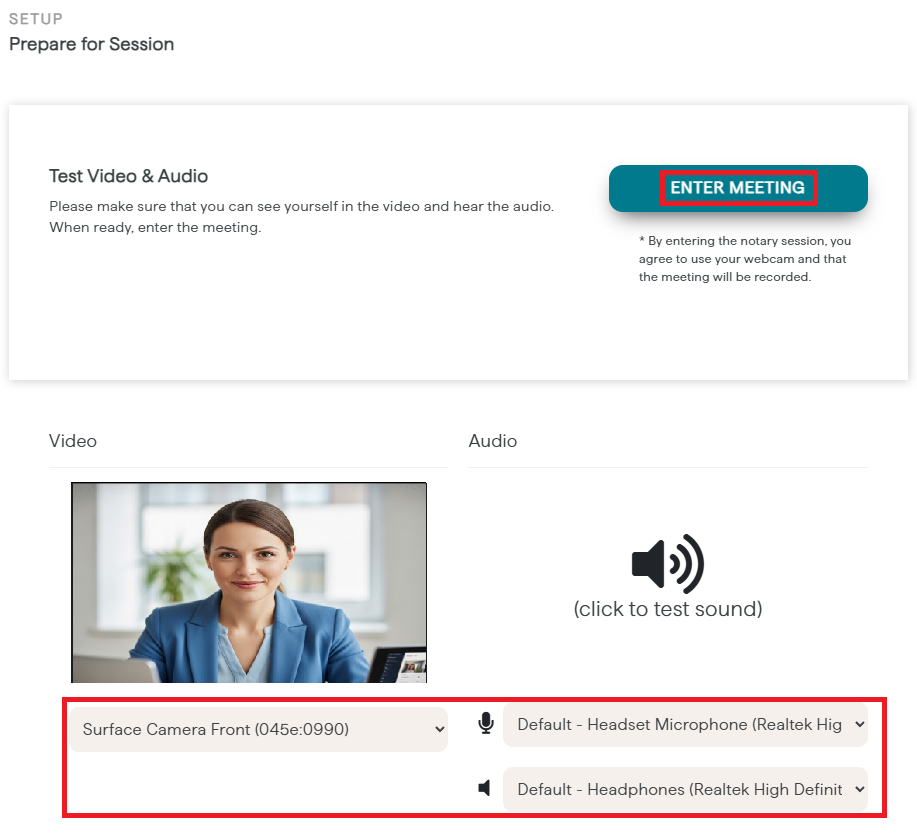
- The Notary will verify video and audio settings, and proceed to "Enter Meeting." After the notary has entered the meeting with "Enter Meeting", the signer will receive an email prompting them to join the meeting.
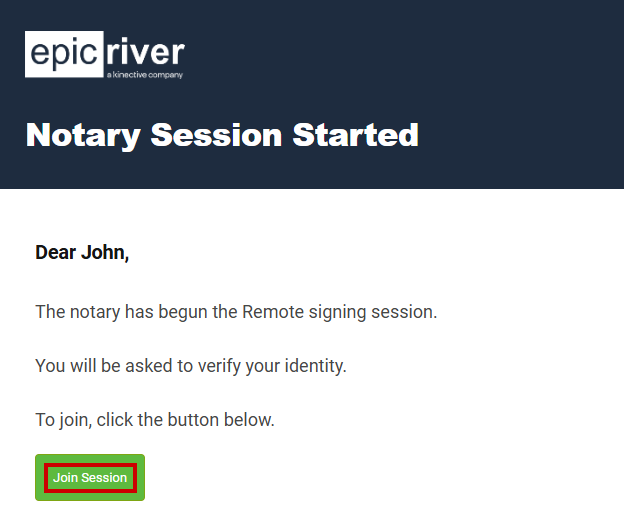
- The signer will click on "Join Session" and then verify their video and audio prior to entering the meeting. Once they enter the meeting they'll be prompted to share their screen to start the signing process.
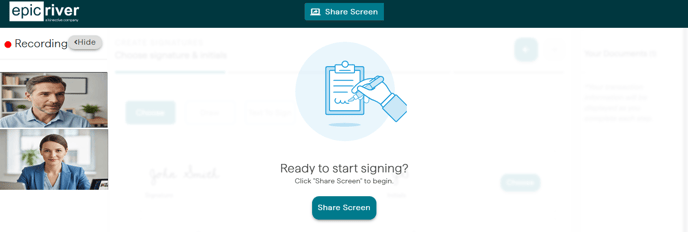
- Once all parties are in the online notary session, the signer will have to preform two types of ID verification methods (Biometric/Credential Analysis & Knowledge Based Authentication). The first step is to complete their ID & Selfie verification, for more instructions on this process click here. Once the first verification is complete, the second verification method will be a Knowledge Based Authentication (KBA), for more instructions on this process click here.
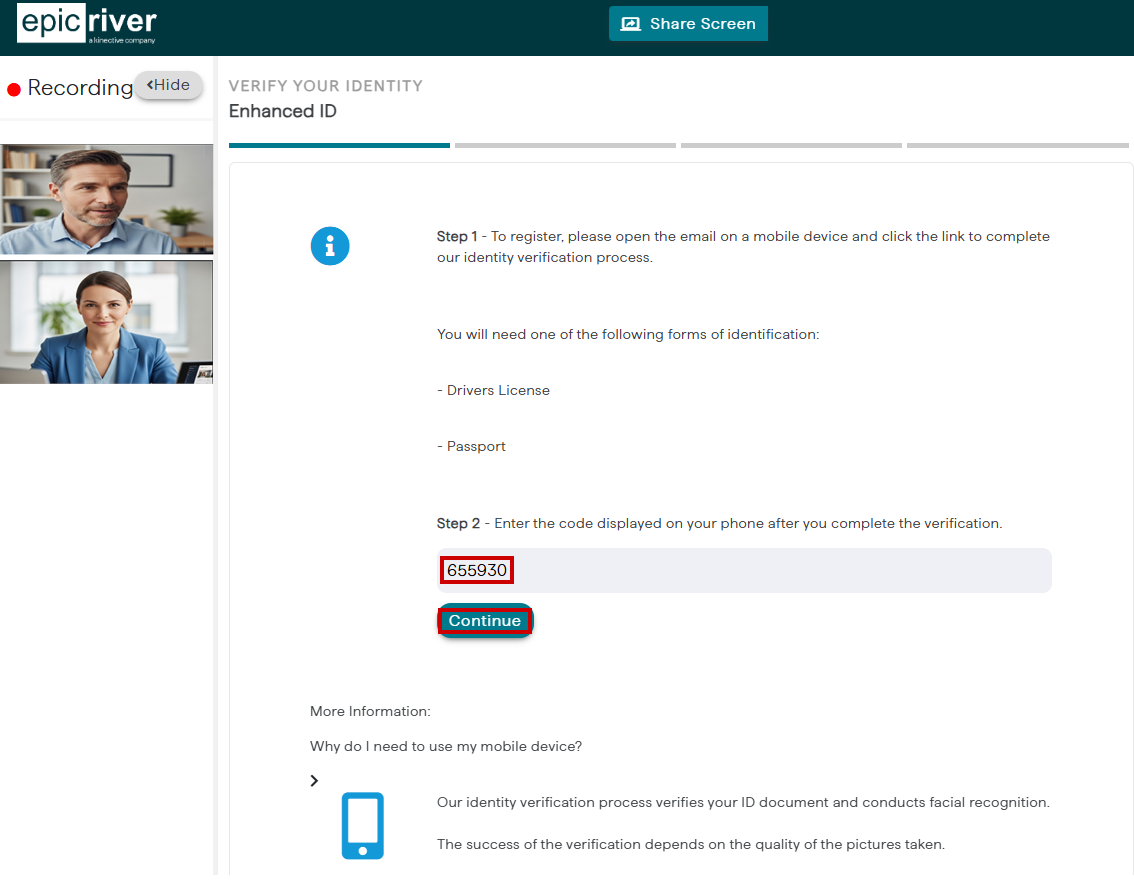
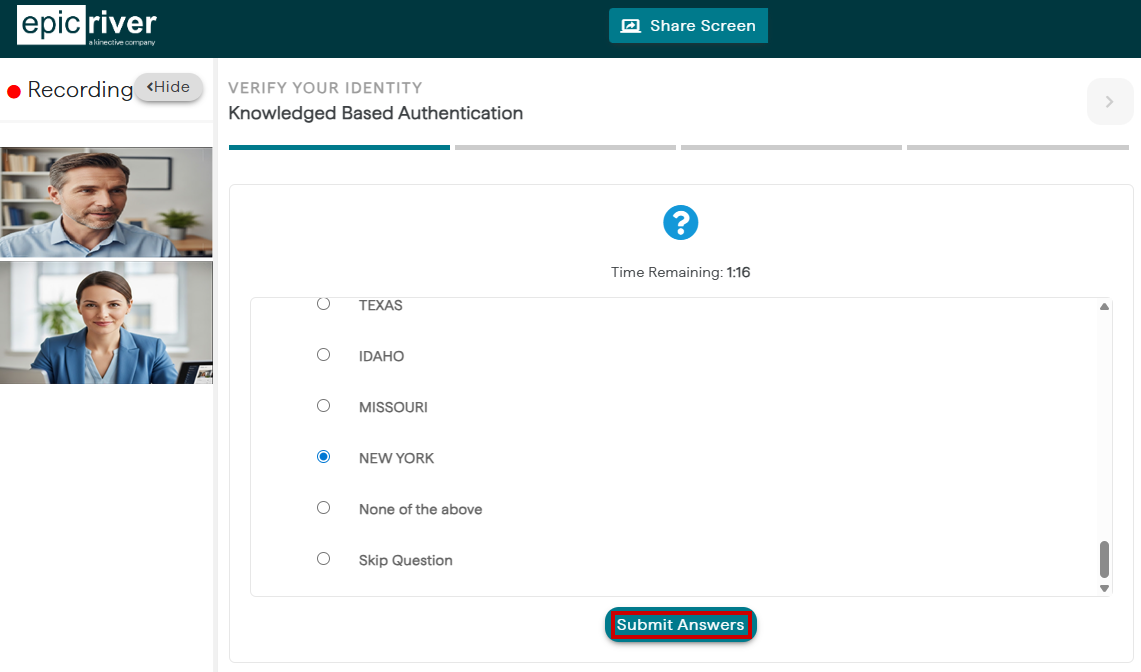
- Once the signer is done signing their documents, they can stop sharing their screen and the Notary can start sharing their screen (optional) to continue with their signing and applying of their notary seal.
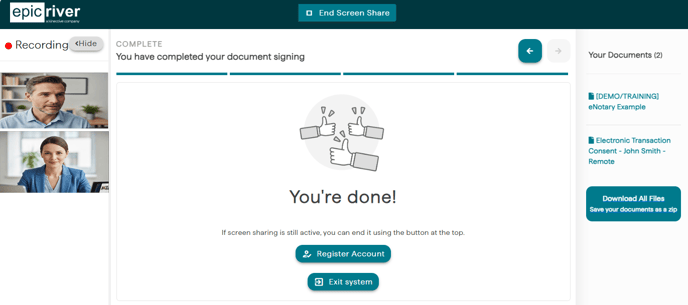
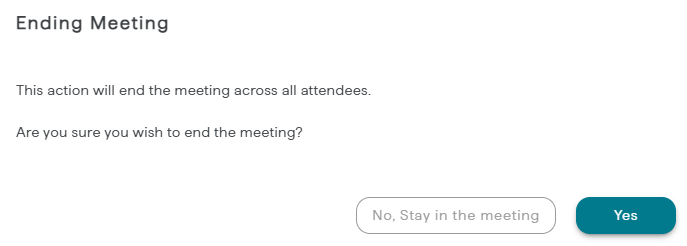
- At the end of signing session, the notary can create a journal with the "Journal" button at the top middle of their screen, and then end the meeting session.
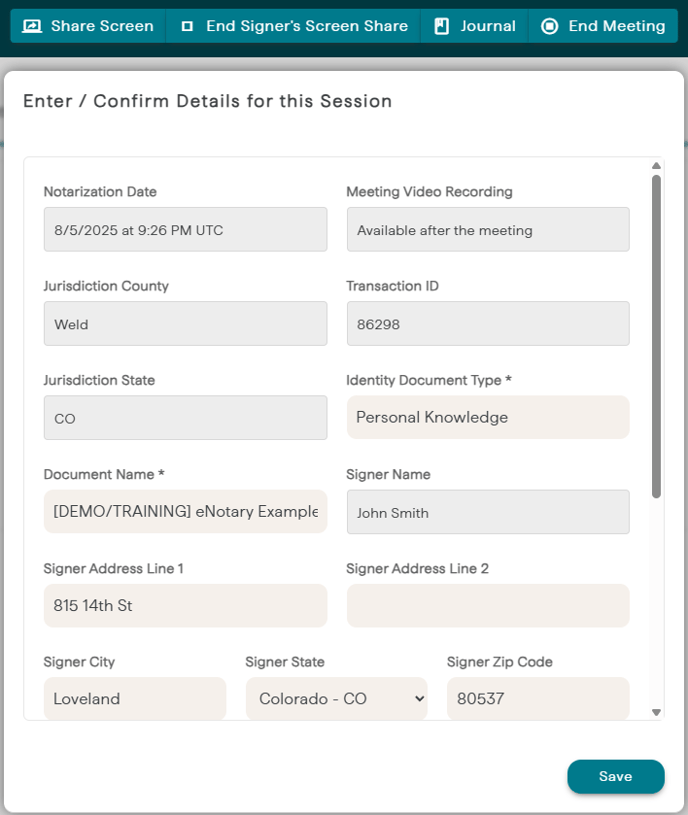
To access or export journal entries in the future please use the following article.