![Epic River-Kinective-white.png]](https://knowledge.epicriver.com/hs-fs/hubfs/Epic%20River-Kinective-white.png?height=40&name=Epic%20River-Kinective-white.png)
Topaz Signature Pads
The following Topaz signature pad models are supported:
- T-LBK766-BHSB-R
- T-LBK766SE-BHSB-R
- T-LBK766SE-BBSB-R
- T-LBK766SE-BHSX-R
- TMLBK766SE HSB-R
- T-LBK57GC-BHSB-R
- T-S460-HSB-R
- T-LBK462-HSB-R
- T-LBK755SE-BHSB-R
- GemView 16 (TD-LBK156VA-USB-R)
- GemView 10 (TD-LBK101VA-USB-R)
- GemView 7 (TD-LBK070VA-USB-R)
How to configure Topaz Signature Pad
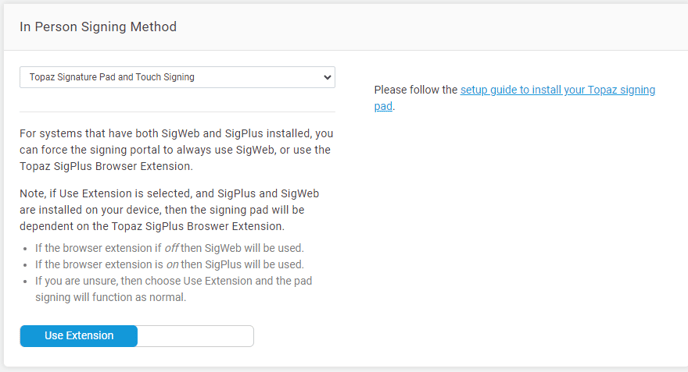
1.) Navigate to Settings -> Signing.
Note: You must have the Configuration Management permission to manage the Signing Setting.
2.) Under the In Person Signing Method section, select Topaz Signature Pad and Touch Signing from the dropdown menu.
3.) Click on the hyperlink: setup guide to install your Topaz signing pad.
4.) From the guide, scroll to page 3 and click on the download link in step 1.
5.) Follow the guide to complete installation.
For any additional assistance, please contact the support team at support@epicriver.com