![Epic River-Kinective-white.png]](https://knowledge.epicriver.com/hs-fs/hubfs/Epic%20River-Kinective-white.png?height=40&name=Epic%20River-Kinective-white.png)
The Platform/ProSign Online can be leveraged for in-person electronic signing. In a scenario when customer(s) meet with the financial institution member, the financial institution member will trigger the "In-Person" signing session from the Platform for the specific customer signer.
Please go to our article for more information: What in-person eSigning methods are supported?
The next few screenshots will be in the point of view of a customer completing their documents in-person with a financial institution member.
- Create Signatures - The signer will now create their signature and initials with a few options to choose from.
- Choose Option - if enabled by the financial institution, the signer will be able to choose from a list of printed font options for electronic signing.
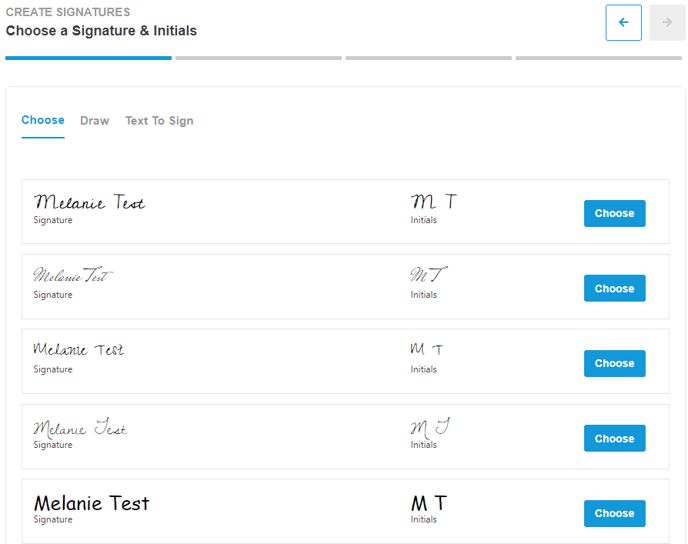
- Draw - the signer will be able to create their signature and initials on their own.
- If the signer is on a computer/laptop with no touchscreen capabilities, they can attempt to draw their signature and initials with their mouse.
- If the signer is using a mobile device such as a tablet or iPad, they can draw their signature and initials with on the touchscreen of the device.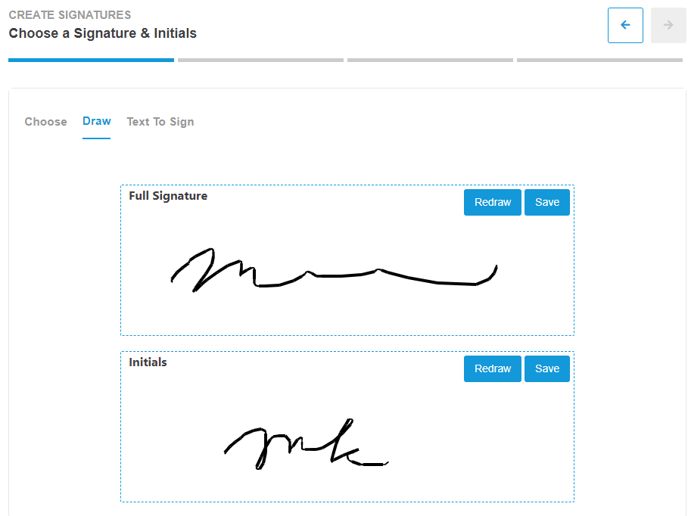
- Text to Sign - the signer can choose create their signature and initials by sending a text message of a link to create their signature and initials by using their touchscreen mobile device.
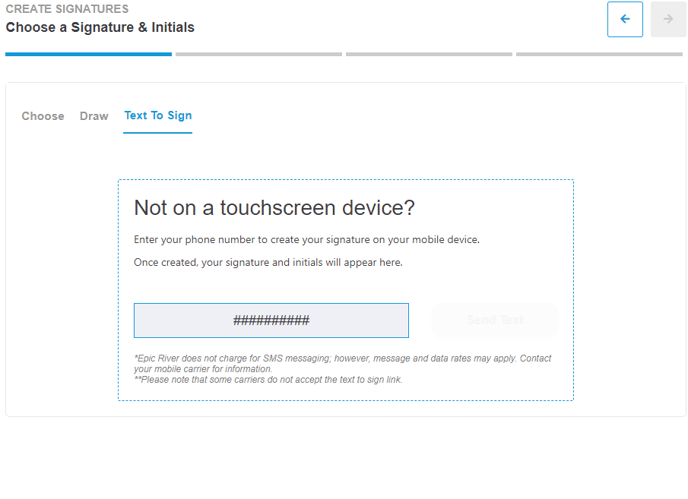
- Choose Option - if enabled by the financial institution, the signer will be able to choose from a list of printed font options for electronic signing.
If the financial institution is set up with a supported signature pad, the customer will sign their document(s) during an in-person signing session with the connected signature pad.
A prompt at the bottom of the screen will indicate to the financial institution member that the signature pad is connected and will be utilized for eSigning.
- Consent for In-Person Electronic Signing - The signer will to apply their signature to the Electronic Consent Form.
- Signing this document ensures compliance with the UETA and ESIGN Act. By signing this document, the signer is stating that they agree to electronically review and sign their documents.
Please note that the electronic consent form for remote signing is required by all signers, and is associated with the respective signer.
The financial institution may require signers to re-sign this document if the signer will sign new documents through the Platform/ProSign Online at a later date or from a future associated transaction.
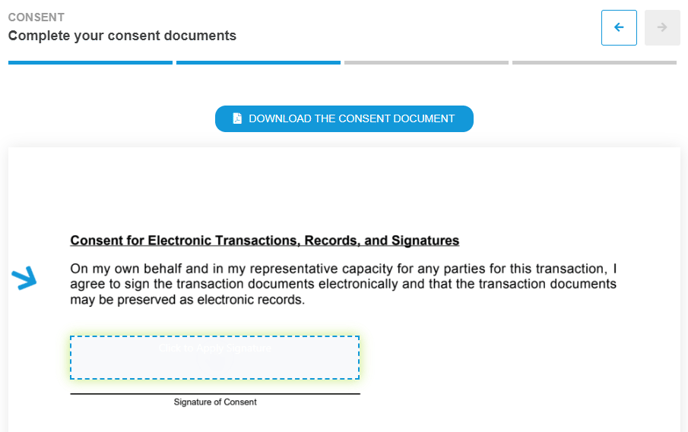
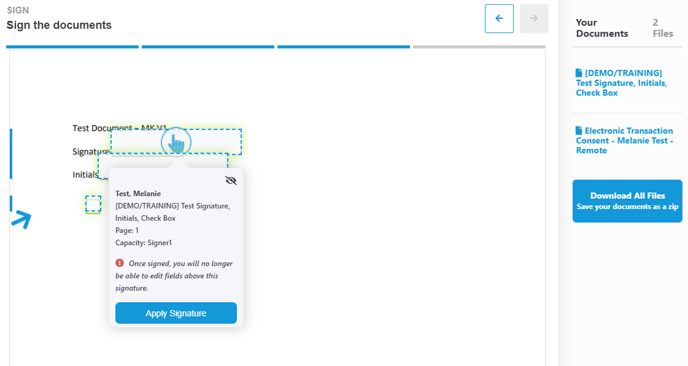
- Signing & Saving - the signer will now go through each document(s) sent by the financial institution and applying their signatures, initials, and/or enter in any entry fields during the signing session. Once all document(s) are completed they will then be prompted to save their progress.
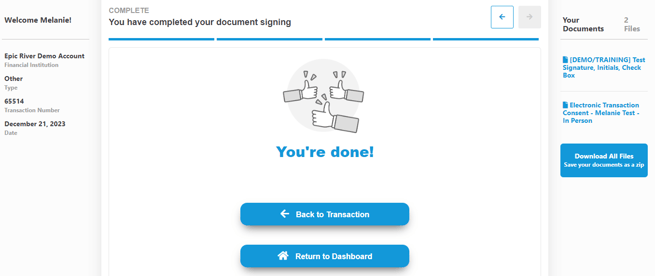
- Complete Page - the signer has completed their document signing. From this page, the financial institution member can download all their documents & print them out for the customer located under the Your Documents section to the right hand side, and click Back to Transaction.
Additional Notes
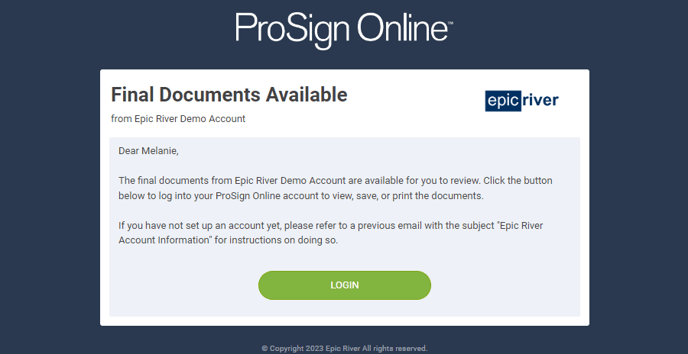
- Once all signer(s) on a transaction completes their signing of documents, an email notification will be triggered by the system that they will have access to the final copies of each document(s).
- Signers who created an Epic River eSign Portal account, will be able to login through the portal and locate their completed documents within their dashboard.
- On the Financial Institution Side - if the financial institution user is managing any associated transactions, they will receive status email notifications on the associated transaction.
- i.e. When a documents have been completed by an individual for a transaction, when a transaction is completed by all signers, any locked out situations, etc.